export gpx from strava
How to export a GPX from Strava, on a computer and on your phone
Export a GPX from Strava: your own activity, a route or a friend’s activity, on a computer or on your phone. The exact steps, and the usual problems.

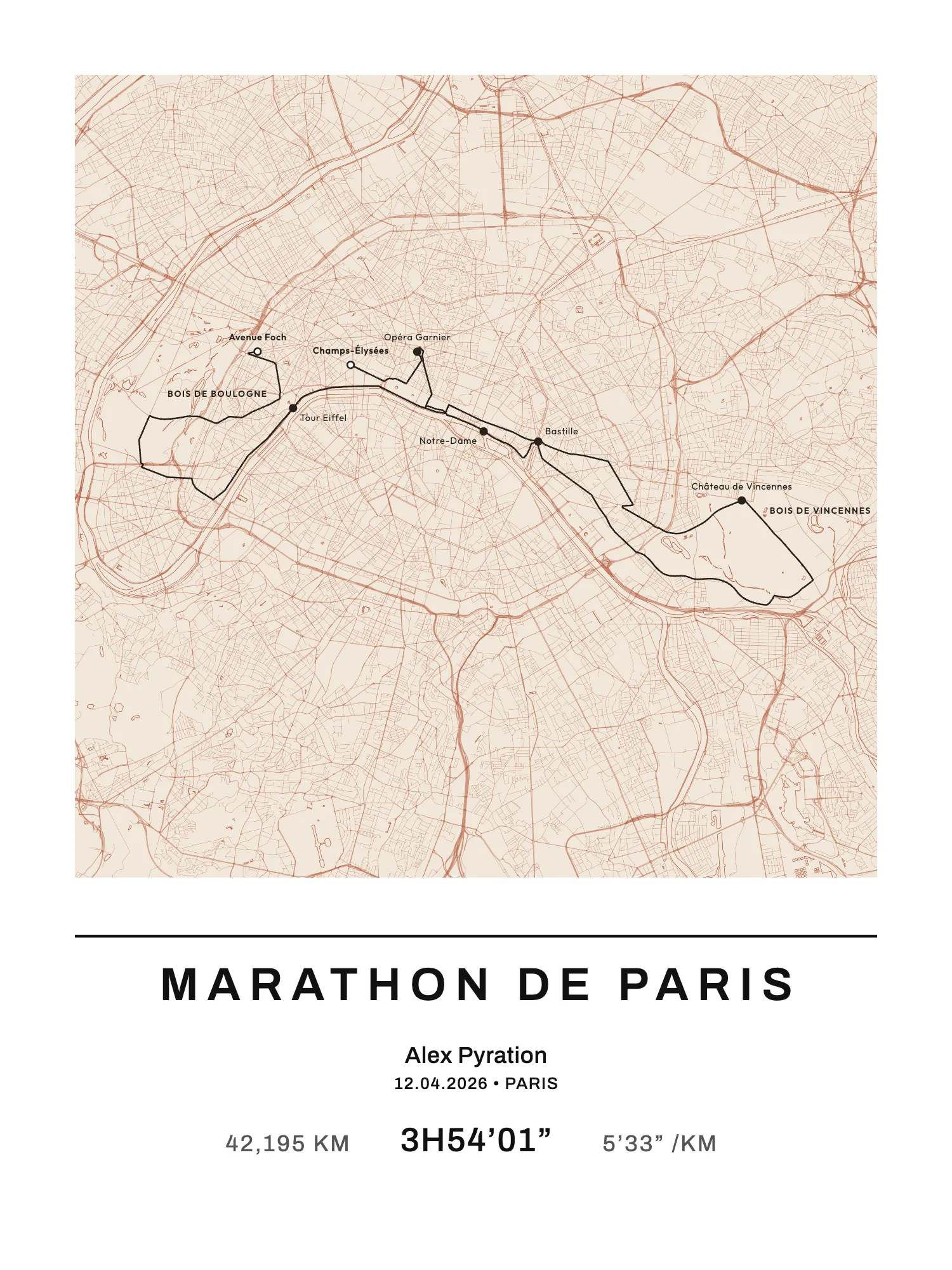
You want the GPX file of a run recorded on Strava, to send it to another app, load it onto your watch or turn it into a poster. The good news: it’s quick. The catch: the Strava mobile app can’t do it. Exporting goes through the strava.com website, which you can open on a computer or in your phone’s browser.
Here are the exact steps, depending on what you want to export: your own activity, a route, or someone else’s activity.
What to know before you start
Strava tells two things apart:
- an activity is what you recorded: your run, with the time, the speed, the heart rate;
- a route is a line planned in advance, with no time and no performance data.
Both export as GPX, but not from the same place.
Two limits to keep in mind, both stated in Strava’s help pages:
- exporting is only available on the website;
- an activity without GPS (treadmill, gym, indoor bike) doesn’t produce a readable GPX. The file will be empty or unreadable.
Export your own activity on a computer
This is the most common case: you ran, your watch or phone sent the activity to Strava, and you want the file.
- Log in to strava.com in a browser.
- Open the activity: from your feed, your profile or Training → My Activities.
- On the activity page, click the “…” menu (the three dots), in the column of icons on the left.
- Choose Export GPX.
- The file downloads straight away, with the
.gpxextension, into your Downloads folder.
The file holds your GPS coordinates, the timestamps and, if they were recorded, your heart rate, cadence and temperature. Power is only in it if it came from a sensor, not Strava’s estimated power.
In the same menu you’ll often see Export Original. It gives you the file exactly as your watch sent it, often in FIT format. It’s the most complete, but plenty of sites only accept GPX. For a poster or a simple import, take the GPX.
Export from the mobile app (iPhone and Android)
The Strava app has no export button. Not on iPhone, not on Android. Users ask for it again and again, but for now Strava says exporting is done on the website only.
The workaround, from your phone:
- Open Safari or Chrome (not the Strava app) and go to strava.com.
- Log in.
- Ask for the desktop version of the site: in Safari, the “aA” button then Request Desktop Website; in Chrome, the “⋮” menu then Desktop site.
- Open the activity and follow the steps above: the “…” menu, then Export GPX.
- On an iPhone, the file lands in the Files app, in the Downloads folder. On Android, in Downloads.
If the Strava app opens instead of the website when you tap a link, copy the activity’s address and paste it straight into the browser’s address bar.
A shortcut: an activity’s address looks like strava.com/activities/1234567890. Add /export_gpx to the end and the browser downloads your own activity’s GPX directly. Strava documents the same trick with /export_tcx for the TCX format.
Export a route
For a route you created, or another athlete’s public route:
- On strava.com, open the route, from your list of routes or the shared link.
- Click the down-arrow icon (download).
- Choose GPX or TCX.
Strava’s help says any public route can be exported from the website. GPX suits a watch with maps; TCX, one without. For anything else, take the GPX.
A route holds no time and no speed: it’s the line alone. For a poster that’s enough, you can type in your time by hand.
Export another athlete’s activity
Your friend ran the same race and their track is cleaner than yours? You can, on a few conditions:
- you must be able to see the activity. An activity set to “Only You” can’t be exported by anyone else;
- the areas hidden by their privacy settings (around their home, for instance) stay hidden;
- the downloaded file is stripped of performance data: you get the line, not their heart rate or their pace.
On their activity’s page, on the website, Strava’s help points to a GPX download button at the top right of the map. Depending on your account and the version of the site, the option may also show in the “…” menu. If you can’t find it, the simplest thing is still to ask them to export the file and send it to you.
Export all your activities at once
To back up your whole history:
- On strava.com, hover over your photo at the top right, open Settings, then the My Account tab.
- Under Download or Delete Your Account, click Get Started.
- On the next page, click Request Your Archive.
- You’ll get an e-mail with a link, sometimes a few hours later.
The archive holds your activities in their original format, often FIT, not necessarily GPX. For a single race, exporting the activity is simpler.
The usual problems
“I can’t find Export GPX.” You’re probably in the app, or on the mobile version of the website. Switch to the desktop version. Check, too, that the activity really is yours.
The file is empty or refused. The activity has no GPS: a treadmill run, a watch set to indoor mode, or an activity entered by hand. There is nothing to export.
The line jumps, or cuts straight across in the middle. Your watch lost the signal (a tunnel, thick forest, a pause you forgot). The GPX faithfully keeps those errors. If the race is in the Map My Life catalogue, take the official route instead.
The start or the end is missing from a friend’s track. Those are their privacy zones, which hide part of the route from others. Ask them for their own export.
The file is called “activity_1234.gpx” and gets lost. Rename it straight away with the race’s name and the year.
Turn your race into a poster with your GPX
Once the file is downloaded, all that’s left is to drop it into Map My Life:
- Open the builder.
- Choose Import my GPX and select your file. You can also paste the link to a public Strava route.
- Pick a map style and a font, add your name, your time and the date.
- Get the A4 free as a PDF by e-mail, or order a print.
Your file isn’t sent to our servers: the poster is drawn in your browser. For a print, only the poster’s final file reaches us.
A well-known race? It may already be in the catalogue, with its official route: the Paris Marathon, the 20 km de Bruxelles or the UTMB, among others. No GPX needed then.
The A4 PDF is free. A print costs €40 in A4, €50 in 30 × 40 cm and €60 in 50 × 70 cm; framed, €75 in A4 and €85 in 30 × 40 cm. Delivery €4.90 for prints, €7.90 with a frame, once per order, to mainland France, Belgium, Luxembourg, the Netherlands, Spain, Italy and Ireland.FAQ
Can you export a GPX from the Strava app?
No. The Strava app, on iPhone as on Android, has no export. Open strava.com in your phone’s browser, switch to the desktop version, then use the activity’s “…” menu.
Do you need a Strava subscription to export a GPX?
Not for your own activities: GPX export is available from the activity’s page on the website, without a subscription.
How do you download a friend’s activity as a GPX on Strava?
On the website, if their activity is visible to you, a GPX download button is offered on the map. You get the line alone, without their performance data. Otherwise, ask them to send you the file.
Why is my Strava GPX file empty?
Because the activity has no GPS data: a treadmill, indoor mode, or a manual entry. Strava can’t invent a line that was never recorded.