export gpx from garmin connect
How to export a GPX from Garmin Connect, Coros and Suunto
Export a GPX from Garmin Connect, the Coros app or Suunto: the exact steps on a computer and on your phone, which format to pick, and the usual mistakes.

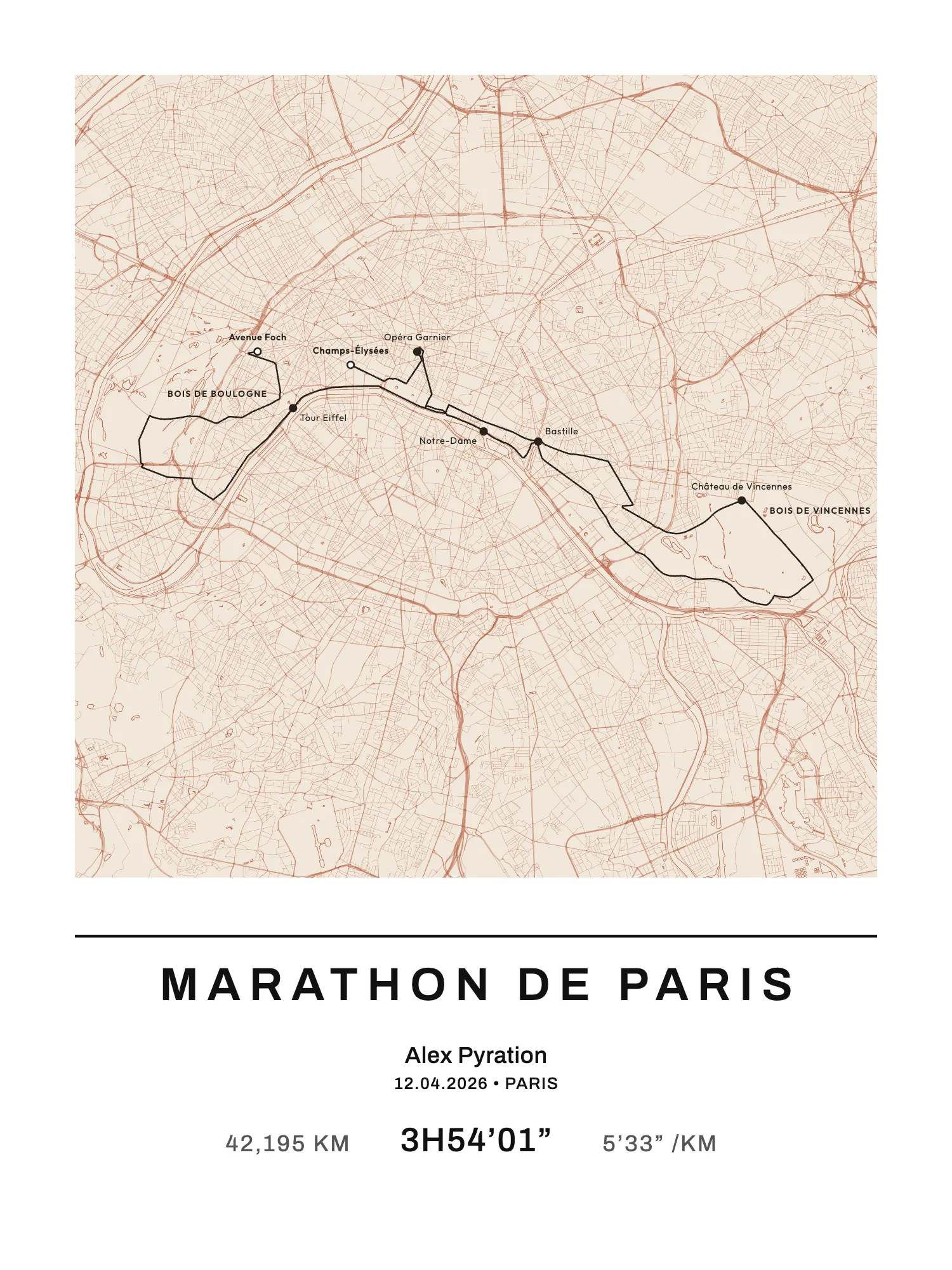
Your watch recorded everything: the line, the altitude, the heart rate. But to send your race to another app or turn it into a poster, you need a file, and each brand hides it somewhere different. Garmin puts it on the website, Coros and Suunto in the phone app.
Here’s how to do it for each, checked against their help pages.
GPX, FIT, TCX: which one to choose
All three brands offer several formats. In short:
- GPX: the GPS line with the time, and often the altitude and heart rate. It’s the format almost everyone accepts. Choose it by default.
- FIT: the watch’s native file, the most complete (power, cadence, laps…). Ideal for moving from one training platform to another, but plenty of sites can’t read it.
- TCX: an in-between format, with more data than GPX. Useful for some older GPS units and software.
For a poster, a map or sharing, GPX is enough.
Before you export: two checks
Has the activity synced? A run only shows up in Garmin Connect, Coros or Suunto once the watch has synced with the phone. If it isn’t there, open the brand’s app, with the watch close by and Bluetooth on, and wait for the transfer to finish. For an activity lasting several hours, that can take a minute or two.
Is it the right activity? After an ultra or a marathon, many runners have two recordings: the warm-up and the race, or a race cut in two by a pause they forgot. Check the distance and the start time before exporting. If your race is in two pieces, export both: the full line comes back together by joining the files end to end in a GPX editing tool.
Export a GPX from Garmin Connect
On a computer
It’s the only direct method at Garmin.
- Log in to connect.garmin.com on a computer.
- In the left-hand bar, open Activities, then All Activities.
- Click the activity’s title to open its detailed page.
- Click the gear icon, at the top right of the page.
- Choose Export to GPX.
- The
.gpxfile downloads.
The same menu offers Export Original, which downloads a ZIP archive holding the watch’s FIT file. You need to unzip it before using it anywhere else. You’ll also find the TCX export there.
Garmin’s GPX holds the line, the altitude, the heart rate and the cadence (in a Garmin extension not every app reads), but not the power. For that, take the FIT.
On your phone
The Garmin Connect app has no GPX export for an activity. Runners keep asking for it on the Garmin forums, still with no answer in the app.
The workaround: open connect.garmin.com in Safari or Chrome, log in, switch to the desktop version of the site if needed, then follow the steps above. The file lands in Files on an iPhone, in Downloads on Android.
If the export fails
On very long activities (a 20-hour ultra, for instance), runners report on the Garmin forums GPX exports that spin forever. A few fixes:
- try again a little later, or in another browser;
- export the original (FIT), which is lighter to generate;
- if your watch sends your activities to Strava, export the GPX from Strava.
Your whole history at once
Garmin lets you ask for an export of all your data from your Garmin account settings, under Data Management then Export Your Data. You’ll get an e-mail with a download link, often within 48 hours, sometimes much later. The activities come in their original format, usually FIT. For a single race, exporting the activity is far simpler.
Export a GPX from Coros
In the Coros app
Coros lets you export straight from your phone:
- Open the Coros app and go to your activities.
- Open the activity you want to export.
- Tap the three dots at the top right.
- Choose Export Data.
- Select the .gpx format.
- Your phone’s share menu opens: save the file to Files, send it by e-mail or open it directly in another app.
On a computer, with Training Hub
- Go to training.coros.com and log in with your Coros account.
- Open your list of activities and click the activity.
- At the top right, click the export icon.
- Choose GPX.
Training Hub also offers a bulk export of your history, from the activity list (Export Data), but in FIT or TCX, not GPX.
Export a GPX from Suunto
With Suunto, everything happens in the Suunto app on your phone.
- Open the app and go to your diary.
- Open the workout you want to export.
- Tap the three dots, at the top right.
- Choose the format:
- GPX Workout: the line with the time and, if available, the heart rate;
- GPX Route: the line alone, without the time;
- FIT: all the workout’s data.
- Share or save the file from the menu that opens (e-mail, AirDrop, Files, Google Drive…).
Suunto says so in its help: a workout without GPS can only be exported as FIT, not GPX.
For a poster, GPX Workout and GPX Route both work, since only the line matters. GPX Route is a little lighter and doesn’t hold your split times, if you’d rather not share them.
The usual mistakes
The downloaded file is a .zip. On Garmin, you chose Export Original. Unzip it, or start again and choose GPX.
The site refuses your file. Check the extension: .fit and .tcx are not .gpx. Export again as GPX.
No GPX option. The activity has no GPS: a treadmill, the gym, the pool, or a watch in indoor mode. There’s no line to export.
The line cuts straight across in the middle. The watch lost the signal for a while. The GPX keeps the error. If your race is a well-known one, look for it in the Map My Life catalogue instead, where the route is already clean.
You can’t find the file on your phone. On an iPhone, look in the Files app, in the Downloads folder. On Android, in Downloads or My Files.
Make a poster with your GPX
You have your file: drop it into Map My Life, pick a map style and a font, add your name, your time and the date. The poster is drawn in your browser, and your file isn’t sent to our servers.
For a well-known race, you don’t even need a GPX: over 400 races are ready, with their official route, like the Paris Marathon, the UTMB or Olne-Spa-Olne.
The A4 PDF is free. A print costs €40 in A4, €50 in 30 × 40 cm and €60 in 50 × 70 cm; framed, €75 in A4 and €85 in 30 × 40 cm. Delivery €4.90 for prints, €7.90 with a frame, once per order, to mainland France, Belgium, Luxembourg, the Netherlands, Spain, Italy and Ireland.FAQ
Can you export a GPX from the Garmin Connect app?
No, the mobile app has no GPX export for activities. Open connect.garmin.com in your phone’s browser and use the activity’s gear icon.
Where is the export button in Garmin Connect?
On the website, on the activity’s detailed page: the gear icon at the top right, then Export to GPX.
How do you export a GPX from a Coros watch?
In the Coros app, open the activity, tap the three dots at the top right, choose Export Data then the GPX format. On a computer, go through training.coros.com.
What’s the difference between GPX Workout and GPX Route on Suunto?
GPX Workout holds the line, the time and the heart rate if available. GPX Route holds only the line. For a poster or a map, either will do.